Wie aktualisiert man SIP-Telefone im POST-Modus?

Einführung

Überblick

Dieser Artikel gilt für industrielle Geräte, die das Betriebssystem VxWorks verwenden. Der POST-Modus auf SIP-Telefonen funktioniert wie das BIOS auf einem Computer, und die Firmware entspricht dem Betriebssystem des Computers. Wenn ein Computer abstürzt, können Sie das Betriebssystem neu installieren. Ebenso können Sie den POST-Modus verwenden, um das System zu aktualisieren und wiederherzustellen, wenn ein Telefon nicht normal startet.

Anwendbare Modelle

BHP-SOS12, BHP-SOS12V, BHP-SOS18, Bi20S, Bi30S, Bi31S, Bi23S, Bi32V, Bi33V, BK-ROIP-PA2.

Vorbereitung für das POST-Update

Firmware-Download & Vorbereitung

Laden Sie die neueste Firmware für Ihr Gerät herunter von: https://www.fanvil.com/Support/download.html Wenn Sie unsicher sind, welche Firmware Sie verwenden sollen, oder eine angepasste Version haben, wenden Sie sich an den technischen Support.

Hinweis: Die Firmware-Datei MUSS im Format .z vorliegen. Dies ist KEINE Zip-Datei und DARF NICHT entpackt werden.

FTP-Server-Konfiguration

FTP-Tool: Wir verwenden wftpd32 (andere FTP-Software wird ebenfalls unterstützt). Laden Sie wftpd32 herunter: http://download.fanvil.com/HowTo/UpdateInPostMode/wftpd32.rar Führen Sie wftpd32 auf Ihrem PC aus.

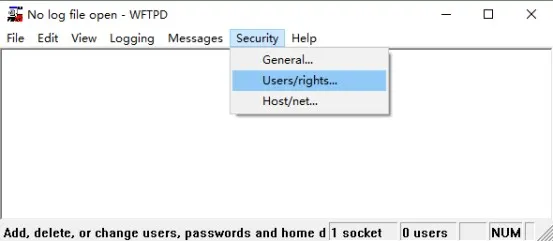
  1. Sicherheitseinstellungen öffnen
    Gehen Sie zum Menü: SecurityUser/rights...
    FTP-Server Sicherheitseinstellungen

  2. Einen Benutzer erstellen
    Klicken Sie auf New User... und legen Sie einen Benutzernamen und ein Passwort fest (merken Sie sich diese für später).
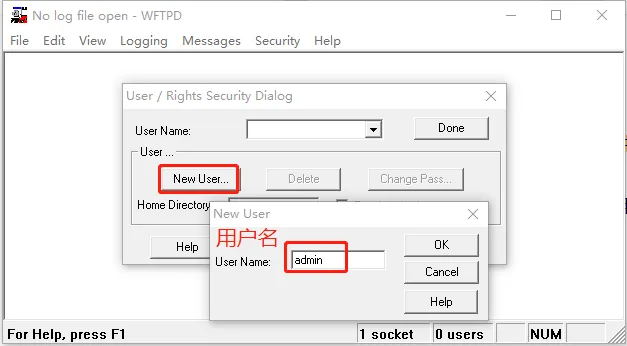
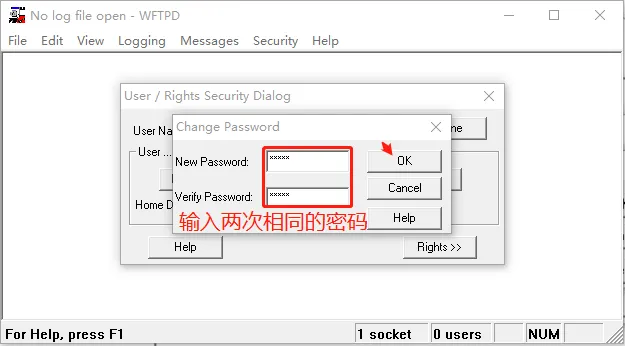
    Neuen Benutzer erstellenBenutzerpasswort festlegen

  3. Home-Verzeichnis festlegen
    Geben Sie den Ordnerpfad ein, in dem Ihre .z-Firmware gespeichert ist (geben Sie KEINEN Dateinamen an). Klicken Sie auf Done.
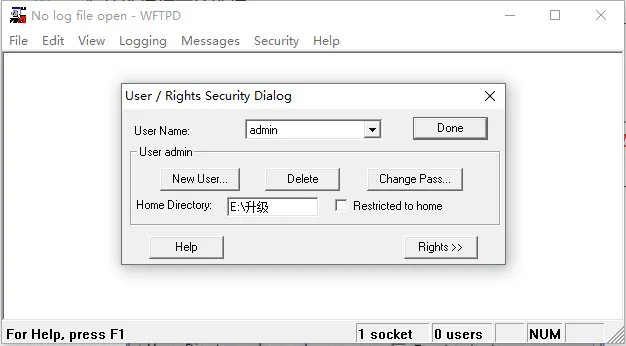
    Home-Verzeichnis festlegen

  4. Protokollierung aktivieren (optional)
    Gehen Sie zu: LoggingLog Options, aktivieren Sie Enable Logging.
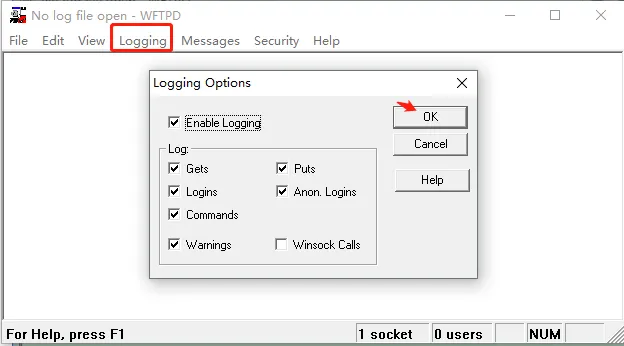
    Protokollierung aktivieren

WARNUNG: Schließen Sie den FTP-Server NICHT während des POST-Updates.

Terminal- & PC-Netzwerkeinrichtung

  1. In den POST-Modus wechseln
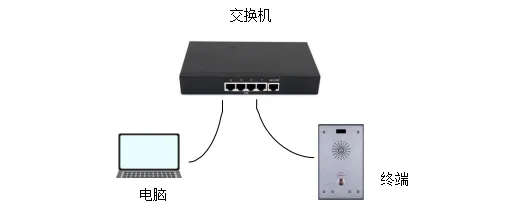
    Verbinden Sie den PC mit dem WAN-Port des Geräts (gleiches LAN). Starten Sie das Gerät neu.
    - Für i12/i16V/i18S/i20S/i30S/i31S/i23S/i32V/i33V: Halten Sie * + # 10 Sekunden lang gedrückt.
    - Für PA2: Halten Sie Lautstärke + + Lautstärke – 10 Sekunden lang gedrückt.

  2. Statische IP des PCs einstellen
    Stellen Sie die IPv4-Adresse Ihres PCs ein auf: 192.168.10.2
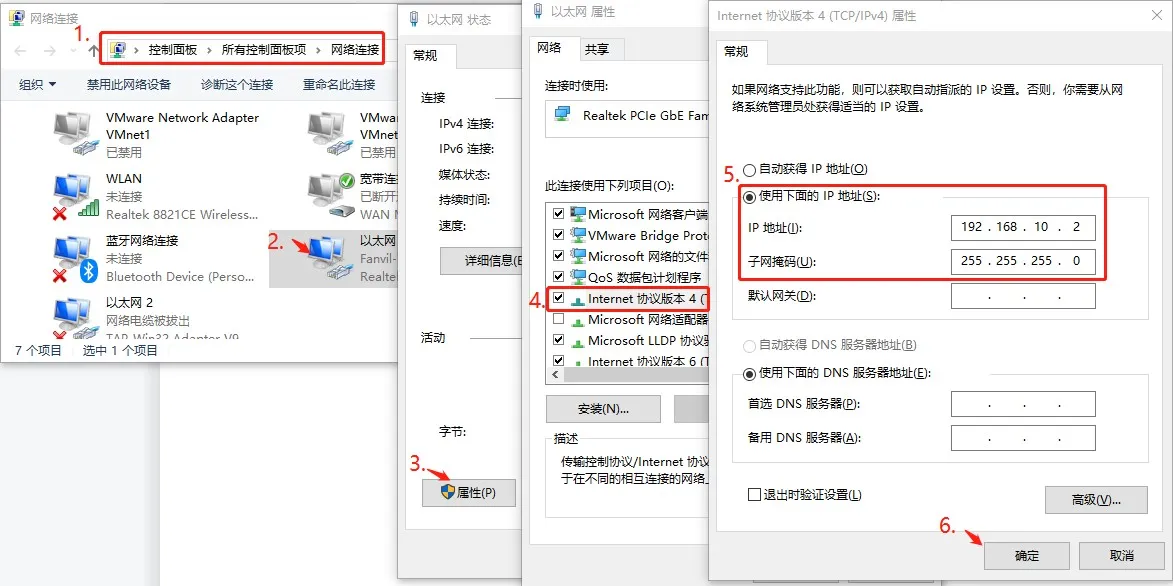
    PC-IP-Adresse einstellen

Geräteverbindungsdiagramme

Methode 1: PC direkt mit WAN-Port verbunden

Direkte Verbindung von PC zu Gerät

Methode 2: Gleiches lokales Netzwerk
Verbindung im gleichen LAN

POST-Update & Werkseinstellungen zurücksetzen

POST-Update-Schritte

  1. Eingabeaufforderung öffnen
    Drücken Sie Win + R, geben Sie cmd ein, drücken Sie die Eingabetaste.
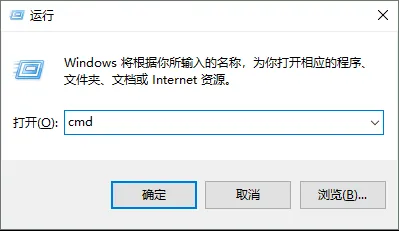
    CMD öffnen

  2. Telnet-Verbindung zum Gerät herstellen
    Führen Sie den Befehl aus: telnet 192.168.10.1
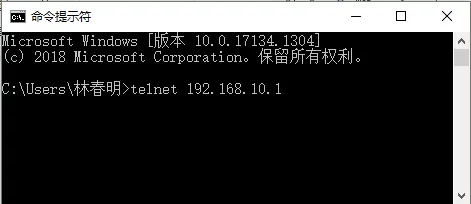
    Telnet-Befehl

    Hinweis: Wenn Telnet nicht aktiviert ist, installieren Sie es über Windows-Funktionen oder verwenden Sie Tools wie PuTTY/SecureCRT.

  3. Update starten
    Geben Sie 2 ein und drücken Sie die Eingabetaste. Geben Sie die folgenden Informationen ein (drücken Sie nach jeder Eingabe die Eingabetaste):
    - Geben Sie Serveradresse ein: 192.168.10.2
    - Geben Sie Bildnamen ein: xxx.z (Ihre Firmware-Datei)
    - Geben Sie Benutzernamen ein: FTP-Benutzername
    - Geben Sie Passwort ein: FTP-Passwort
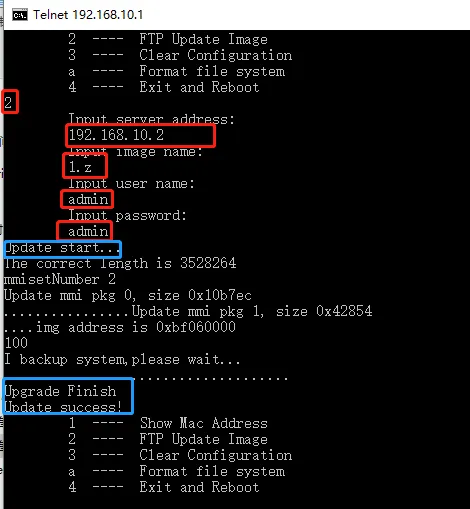
    Update-Parameter eingeben

    Hinweis: Verwenden Sie nur .z-Dateien. Zeigen Sie bei Bedarf Dateierweiterungen an.

  4. FTP-Status prüfen
    Das FTP-Fenster zeigt den Download-Fortschritt an. Eine Erfolgsmeldung bestätigt den Abschluss.
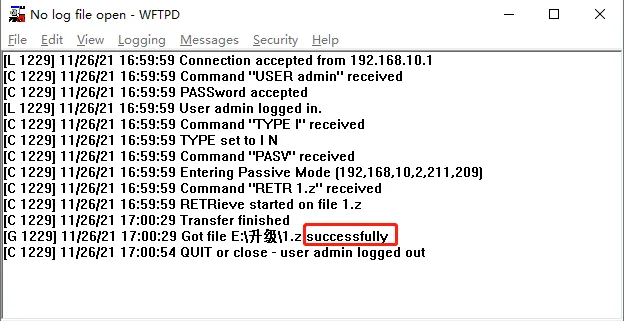
    Firmware-Download erfolgreich

    Hinweis: Wenn das Update fehlschlägt, deaktivieren Sie die PC-Firewall und versuchen Sie es erneut.

Wie man die Werkseinstellungen zurücksetzt

Nach erfolgreichem Update:

  1. Geben Sie im POST-Modus 3 ein, um alle Konfigurationen zu löschen (Stromversorgung EINGESCHALTET lassen).

  2. Geben Sie 4 ein, um das Gerät neu zu starten.

Nach dem Neustart melden Sie sich bei der Web-Oberfläche an, um die Firmware-Version und den normalen Betrieb zu überprüfen. Das Update ist abgeschlossen.

Katalog
Kundenservice Telefon
We use cookie to improve your online experience. By continuing to browse this website, you agree to our use of cookie.

Cookies

This Cookie Policy explains how we use cookies and similar technologies when you access or use our website and related services. Please read this Policy together with our Terms and Conditions and Privacy Policy so that you understand how we collect, use, and protect information.

By continuing to access or use our Services, you acknowledge that cookies and similar technologies may be used as described in this Policy, subject to applicable law and your available choices.

Updates to This Cookie Policy

We may revise this Cookie Policy from time to time to reflect changes in legal requirements, technology, or our business practices. When we make updates, the revised version will be posted on this page and will become effective from the date of publication unless otherwise required by law.

Where required, we will provide additional notice or request your consent before applying material changes that affect your rights or choices.

What Are Cookies?

Cookies are small text files placed on your device when you visit a website or interact with certain online content. They help websites recognize your browser or device, remember your preferences, support essential functionality, and improve the overall user experience.

In this Cookie Policy, the term “cookies” also includes similar technologies such as pixels, tags, web beacons, and other tracking tools that perform comparable functions.

Why We Use Cookies

We use cookies to help our website function properly, remember user preferences, enhance website performance, understand how visitors interact with our pages, and support security, analytics, and marketing activities where permitted by law.

We use cookies to keep our website functional, secure, efficient, and more relevant to your browsing experience.

Categories of Cookies We Use

Strictly Necessary Cookies

These cookies are essential for the operation of the website and cannot be disabled in our systems where they are required to provide the service you request. They are typically set in response to actions such as setting privacy preferences, signing in, or submitting forms.

Without these cookies, certain parts of the website may not function correctly.

Functional Cookies

Functional cookies enable enhanced features and personalization, such as remembering your preferences, language settings, or previously selected options. These cookies may be set by us or by third-party providers whose services are integrated into our website.

If you disable these cookies, some services or features may not work as intended.

Performance and Analytics Cookies

These cookies help us understand how visitors use our website by collecting information such as traffic sources, page visits, navigation behavior, and general interaction patterns. In many cases, this information is aggregated and does not directly identify individual users.

We use this information to improve website performance, usability, and content relevance.

Targeting and Advertising Cookies

These cookies may be placed by our advertising or marketing partners to help deliver more relevant ads and measure the effectiveness of campaigns. They may use information about your browsing activity across different websites and services to build a profile of your interests.

These cookies generally do not store directly identifying personal information, but they may identify your browser or device.

First-Party and Third-Party Cookies

Some cookies are set directly by our website and are referred to as first-party cookies. Other cookies are set by third-party services, such as analytics providers, embedded content providers, or advertising partners, and are referred to as third-party cookies.

Third-party providers may use their own cookies in accordance with their own privacy and cookie policies.

Information Collected Through Cookies

Depending on the type of cookie used, the information collected may include browser type, device type, IP address, referring website, pages viewed, time spent on pages, clickstream behavior, and general usage patterns.

This information helps us maintain the website, improve performance, enhance security, and provide a better user experience.

Your Cookie Choices

You can control or disable cookies through your browser settings and, where available, through our cookie consent or preference management tools. Depending on your location, you may also have the right to accept or reject certain categories of cookies, especially those used for analytics, personalization, or advertising purposes.

Please note that blocking or deleting certain cookies may affect the availability, functionality, or performance of some parts of the website.

Restricting cookies may limit certain features and reduce the quality of your experience on the website.

Cookies in Mobile Applications

Where our mobile applications use cookie-like technologies, they are generally limited to those required for core functionality, security, and service delivery. Disabling these essential technologies may affect the normal operation of the application.

We do not use essential mobile application cookies to store unnecessary personal information.

How to Manage Cookies

Most web browsers allow you to manage cookies through browser settings. You can usually choose to block, delete, or receive alerts before cookies are stored. Because browser controls vary, please refer to your browser provider’s support documentation for details on how to manage cookie settings.

Contact Us

If you have any questions about this Cookie Policy or our use of cookies and similar technologies, please contact us at support@becke.cc .