Wie erstellt man ein lokales Telefonbuch auf einem Industrietelefon?

Einführung

Überblick

Dieses Dokument soll Benutzern anleiten, wie man ein lokales Telefonbuch mit WPS oder Excel bearbeitet.

Anwendbare Modelle

Alle Telefonmodelle unserer Firma (BX5U wird in diesem Dokument als Beispiel verwendet)

Benötigte Materialien

① Ein aus dem Telefon exportiertes Telefonbuch (CSV-Format).
② WPS oder Excel zur Tabellenbearbeitung.
③ UltraEdit-Editiersoftware (verfügbar bei gängigen Downloadquellen).

Betriebsschritte

Anmeldung an der Telefon-WEB-Schnittstelle

Tippen Sie auf dem LCD-Bildschirm des Telefons auf “Menü” — “Status”, um die Telefon-IP-Adresse anzuzeigen.
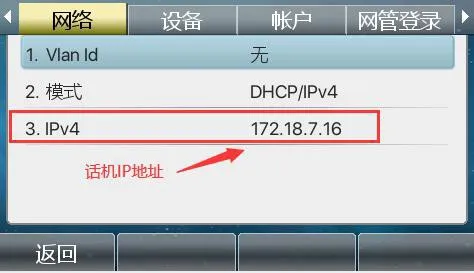
Telefon-IP-Adresse anzeigen
Melden Sie sich dann an der Telefon-WEB-Schnittstelle an. Öffnen Sie einen Browser auf dem PC und geben Sie die Telefon-IP-Adresse in die “Adressleiste” ein.
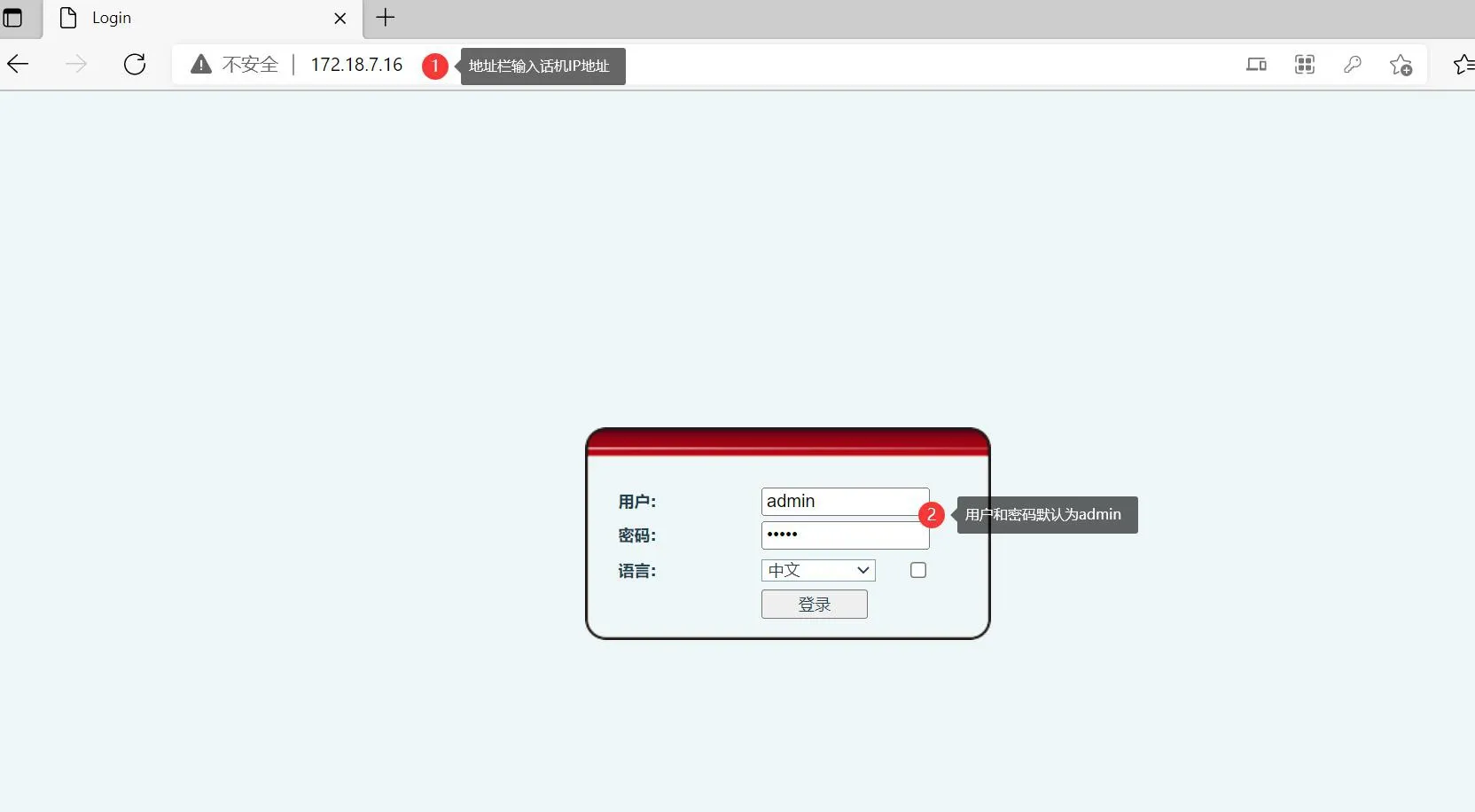
WEB-Seiten-Adressleiste

Kontakte hinzufügen

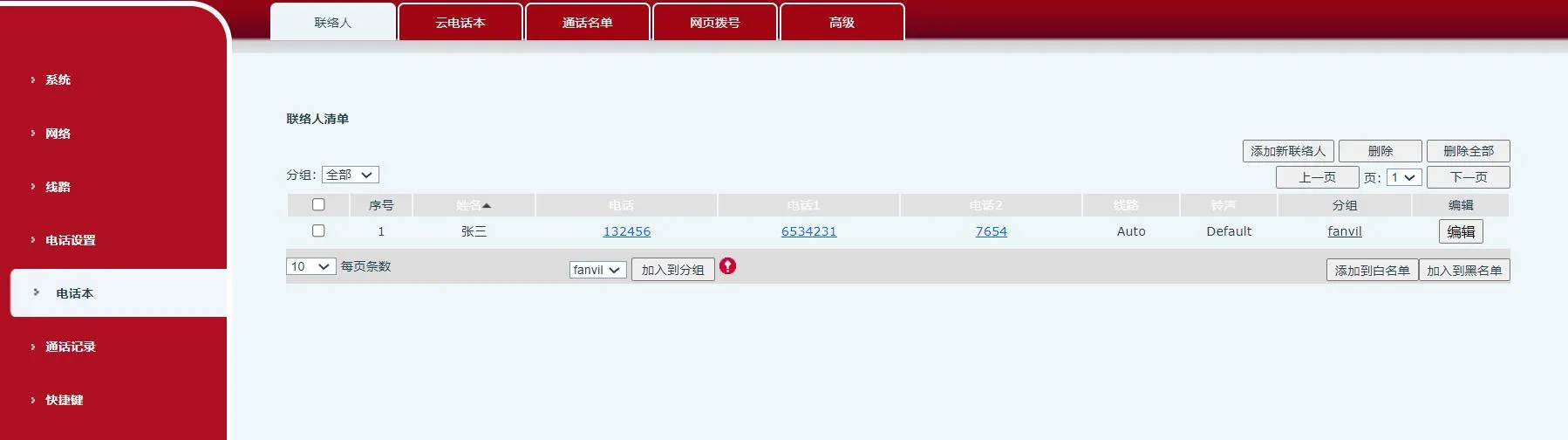
Nach der Anmeldung an der Telefon-Web-Schnittstelle klicken Sie auf “Telefonbuch” - “Kontakte” - “Neuen Kontakt hinzufügen” und fügen Sie zuerst einen Kontakt hinzu, wie in Abbildung 1 und Abbildung 2 unten gezeigt.
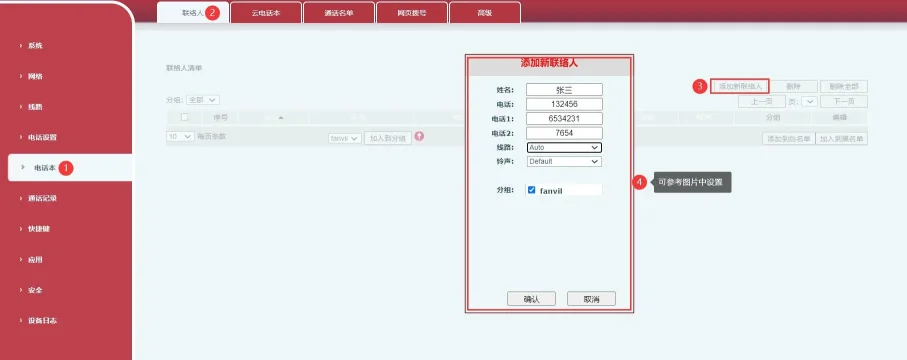
Kontakt in der Telefon-Web-Schnittstelle hinzufügen
                                                                                                                                                                     Abbildung 1
Telefon-Kontaktgruppeneinstellungen
                                                                                                                                                                    Abbildung 2

Gruppen hinzufügen

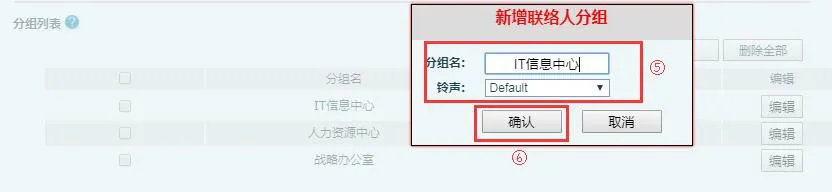
Wenn Gruppeninformationen in den Kontakten erforderlich sind, fügen Sie die Gruppeninformationen hinzu, bevor Sie Kontakte hinzufügen. Klicken Sie auf “Telefonbuch” - “Erweitert” - “Gruppenliste” - “Neue Kontaktgruppe hinzufügen”, dann fügen Sie die Gruppeninformationen im Abschnitt Neue Kontaktgruppe hinzu, wie in Abbildung 3 und Abbildung 4 unten gezeigt:
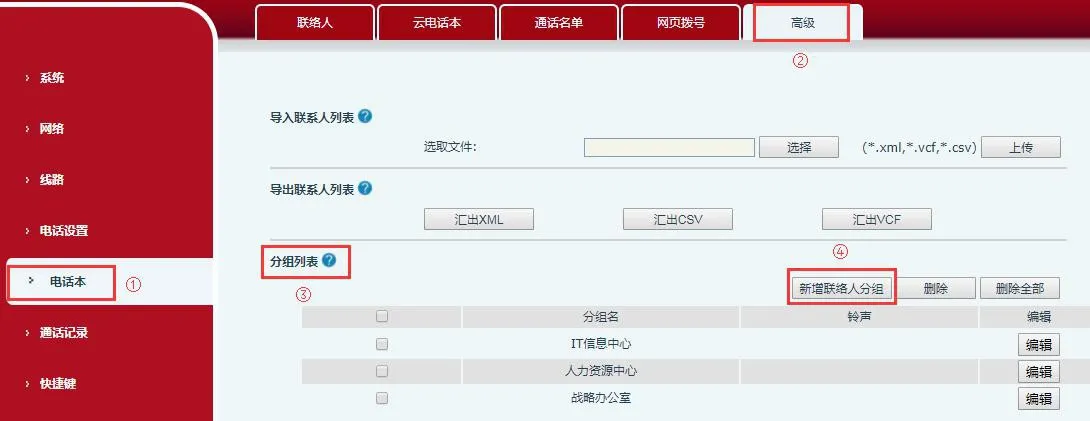
Neue Kontaktgruppe in der Telefon-Web-Schnittstelle hinzufügen
                                                                                                                                                                  Abbildung 3

Neuen Kontakt in der Telefon-Web-Schnittstelle hinzufügen
                                                                                                                                                          Abbildung 4

Kontaktliste exportieren

Nach der Anmeldung an der Telefon-Web-Schnittstelle klicken Sie auf “Telefonbuch” - “Erweitert”. Klicken Sie im Abschnitt Kontaktliste exportieren auf CSV exportieren, um die Kontaktliste im CSV-Format zu exportieren. Der Standarddateiname ist contact.csv. Dadurch erhalten Sie eine Vorlage für die Telefonkontaktliste. Solange Sie Kontaktinformationen zu dieser Datei hinzufügen, ohne ihr ursprüngliches Format oder ihre Struktur zu ändern, können die aktualisierten Kontakte erfolgreich zurück in das Telefonbuch importiert werden, wie in Abbildung 5 unten gezeigt.
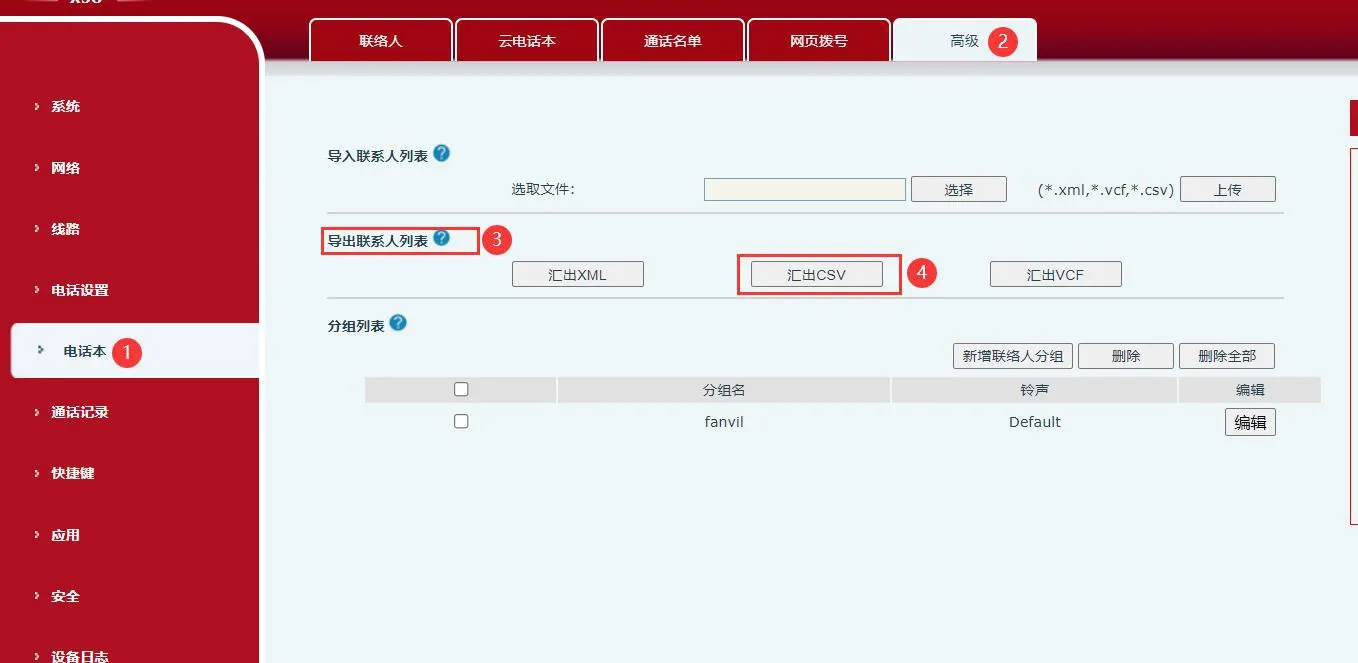
Kontaktliste in der Telefon-Web-Schnittstelle exportieren 

                                                                                                                                                                      Abbildung 5

Kontakte in einer Tabelle bearbeiten

Verwenden Sie ein Tabellenbearbeitungstool, um die Kontaktliste zu bearbeiten. Übliche Optionen sind Excel oder WPS. Dieses Dokument verwendet WPS als Beispiel. Öffnen Sie zuerst die im Schritt 3 exportierte Datei contact.csv mit WPS, dann geben Sie die neuen Kontaktinformationen ein. Nach der Dateneingabe sieht es wie folgt aus:

Kontaktliste bearbeiten
Unter den Feldern:
Geben Sie den Kontaktnamen in die Spalte name (Name) ein. Geben Sie die Kontaktnummer in die Spalte work (Arbeit) ein.
Geben Sie andere Kontaktnummern in die Spalten mobile (Mobil) und other (Andere) ein.
Geben Sie das Klingelton in die Spalte ring (Klingelton) ein. Das bedeutet, dass der Telefon das ausgewählte Klingelton verwendet, wenn ein Anruf von dieser Nummer eingeht. Geben Sie den Gruppennamen in die Spalte groups (Gruppen) ein. Bitte beachten Sie, dass die Gruppe bereits auf dem Telefon existieren muss, wenn Sie das Gruppenfeld bearbeiten, z. B. work (Arbeit), home (Zuhause) usw.
Speichern Sie die bearbeitete Datei. Es kann eine Meldung erscheinen, die darauf hinweist, dass das Speicherformat inkompatiblen Inhalt enthält:
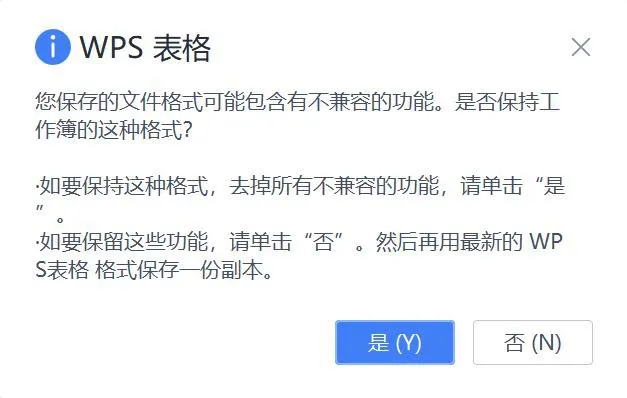
Kontaktliste speichern
Klicken Sie auf “Ja”, um fortzufahren.

Format der Telefonbuchdatei ändern

Wenn Sie das geänderte Telefonbuch zu diesem Zeitpunkt direkt in das Telefon importieren, können die importierten Einträge als verschlüsselter Text (Kauderwelsch) erscheinen. Dies geschieht, weil das Öffnen der Datei mit WPS oder Excel ihr ursprüngliches Codierungsformat ändert. Um dies zu korrigieren, verwenden Sie UltraEdit, um das Dateiformat zu ändern, bevor Sie es zurück in das Telefon importieren. Öffnen Sie die Telefonbuchdatei in UltraEdit, wählen Sie dann im Menüband “Datei” -- “Speichern unter” und achten Sie auf das ausgewählte Format:
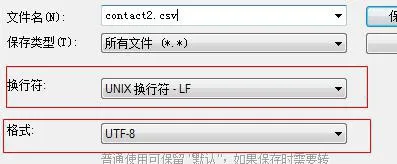
Format der Telefonbuchdatei ändern
Klicken Sie auf Speichern, dann importieren Sie die contact2.csv über die Web-Schnittstelle in das Telefon. Die Kontaktliste wird dann korrekt ohne verschlüsselten Text angezeigt.

Katalog
Kundenservice Telefon
We use cookie to improve your online experience. By continuing to browse this website, you agree to our use of cookie.

Cookies

This Cookie Policy explains how we use cookies and similar technologies when you access or use our website and related services. Please read this Policy together with our Terms and Conditions and Privacy Policy so that you understand how we collect, use, and protect information.

By continuing to access or use our Services, you acknowledge that cookies and similar technologies may be used as described in this Policy, subject to applicable law and your available choices.

Updates to This Cookie Policy

We may revise this Cookie Policy from time to time to reflect changes in legal requirements, technology, or our business practices. When we make updates, the revised version will be posted on this page and will become effective from the date of publication unless otherwise required by law.

Where required, we will provide additional notice or request your consent before applying material changes that affect your rights or choices.

What Are Cookies?

Cookies are small text files placed on your device when you visit a website or interact with certain online content. They help websites recognize your browser or device, remember your preferences, support essential functionality, and improve the overall user experience.

In this Cookie Policy, the term “cookies” also includes similar technologies such as pixels, tags, web beacons, and other tracking tools that perform comparable functions.

Why We Use Cookies

We use cookies to help our website function properly, remember user preferences, enhance website performance, understand how visitors interact with our pages, and support security, analytics, and marketing activities where permitted by law.

We use cookies to keep our website functional, secure, efficient, and more relevant to your browsing experience.

Categories of Cookies We Use

Strictly Necessary Cookies

These cookies are essential for the operation of the website and cannot be disabled in our systems where they are required to provide the service you request. They are typically set in response to actions such as setting privacy preferences, signing in, or submitting forms.

Without these cookies, certain parts of the website may not function correctly.

Functional Cookies

Functional cookies enable enhanced features and personalization, such as remembering your preferences, language settings, or previously selected options. These cookies may be set by us or by third-party providers whose services are integrated into our website.

If you disable these cookies, some services or features may not work as intended.

Performance and Analytics Cookies

These cookies help us understand how visitors use our website by collecting information such as traffic sources, page visits, navigation behavior, and general interaction patterns. In many cases, this information is aggregated and does not directly identify individual users.

We use this information to improve website performance, usability, and content relevance.

Targeting and Advertising Cookies

These cookies may be placed by our advertising or marketing partners to help deliver more relevant ads and measure the effectiveness of campaigns. They may use information about your browsing activity across different websites and services to build a profile of your interests.

These cookies generally do not store directly identifying personal information, but they may identify your browser or device.

First-Party and Third-Party Cookies

Some cookies are set directly by our website and are referred to as first-party cookies. Other cookies are set by third-party services, such as analytics providers, embedded content providers, or advertising partners, and are referred to as third-party cookies.

Third-party providers may use their own cookies in accordance with their own privacy and cookie policies.

Information Collected Through Cookies

Depending on the type of cookie used, the information collected may include browser type, device type, IP address, referring website, pages viewed, time spent on pages, clickstream behavior, and general usage patterns.

This information helps us maintain the website, improve performance, enhance security, and provide a better user experience.

Your Cookie Choices

You can control or disable cookies through your browser settings and, where available, through our cookie consent or preference management tools. Depending on your location, you may also have the right to accept or reject certain categories of cookies, especially those used for analytics, personalization, or advertising purposes.

Please note that blocking or deleting certain cookies may affect the availability, functionality, or performance of some parts of the website.

Restricting cookies may limit certain features and reduce the quality of your experience on the website.

Cookies in Mobile Applications

Where our mobile applications use cookie-like technologies, they are generally limited to those required for core functionality, security, and service delivery. Disabling these essential technologies may affect the normal operation of the application.

We do not use essential mobile application cookies to store unnecessary personal information.

How to Manage Cookies

Most web browsers allow you to manage cookies through browser settings. You can usually choose to block, delete, or receive alerts before cookies are stored. Because browser controls vary, please refer to your browser provider’s support documentation for details on how to manage cookie settings.

Contact Us

If you have any questions about this Cookie Policy or our use of cookies and similar technologies, please contact us at support@becke.cc .